
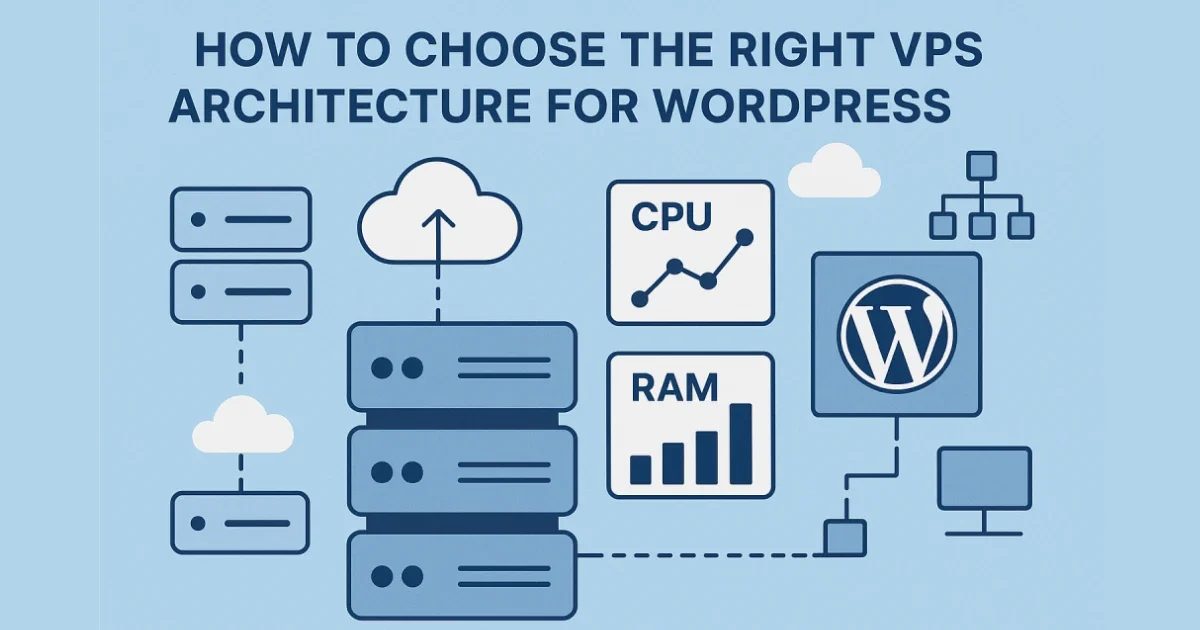
Illustration showing VPS server nodes, cloud icons, CPU/RAM metrics, and WordPress architecture elements arranged in a clean technical layout.
Choosing the right VPS architecture is one of the biggest factors influencing WordPress performance. CPU type, RAM allocation, storage layers, networking, caching, and server stack design all impact how fast your site runs—especially under real-world traffic. A poorly matched VPS setup leads to slow page loads, high TTFB, and instability during peak periods.
At Wisegigs.eu, we architect VPS environments that prioritize performance, predictability, and scalability. This guide breaks down the core components of a high-performance VPS setup for WordPress and explains how each layer affects your site.
1. Start With the Right VPS Type (Shared, Dedicated, Cloud)
Before choosing hardware, decide which VPS model fits your workload.
Shared CPU VPS
Budget-friendly
Suitable for low-traffic WordPress sites
Burst performance only
Risk of “noisy neighbors”
Dedicated CPU VPS
Recommended for production WordPress
Stable performance
No resource contention
Ideal for WooCommerce or high traffic
Cloud VPS (Scalable)
Auto-scaling capabilities
Snapshots + instant upgrades
Ideal for enterprise workloads
DigitalOcean, Hetzner, and Linode all highlight that dedicated CPU architecture provides more predictable performance for PHP workloads:
https://www.digitalocean.com/community/tutorials
https://docs.hetzner.com/
At Wisegigs.eu, we use dedicated CPU VPS plans for any site requiring consistent performance.
2. Choose CPU Types That Work Best With WordPress
WordPress performance is heavily influenced by single-core CPU speed, not core count alone.
What matters:
High clock speed
Modern architecture (AMD EPYC, Intel Xeon)
Low latency
Consistent CPU availability
Examples of excellent CPUs for WordPress workloads:
AMD EPYC Milan / Rome
Intel Xeon Gold series
Avoid:
Budget cloud plans with shared CPU
Legacy CPU nodes
Low-frequency ARM instances (unless optimized)
NGINX’s performance tuning guides stress the importance of CPU speed for PHP processing:
https://www.nginx.com/blog/
3. Match RAM to Your WordPress Workload
Too little RAM leads to:
Slow PHP processing
MySQL swapping
Crashes under traffic
High TTFB
Cache layers purging frequently
Recommended RAM:
1–2 GB → Basic blogs
4 GB → Professional sites or mid-range WooCommerce
8 GB → High-traffic sites or large WooCommerce stores
16 GB+ → Multisite networks, enterprise workloads
Add more RAM if:
You use Redis object caching
You have large DB tables
You run multiple PHP workers
Ubuntu Server documentation reinforces the link between memory headroom and stable Linux performance:
https://ubuntu.com/server/docs
4. Use NVMe Storage for Faster Database and Cache Performance
Storage is a major bottleneck in traditional VPS environments.
Storage types:
NVMe SSD (Recommended)
Fastest read/write
Ideal for MySQL/MariaDB
Reduces query latency significantly
SATA SSD
Acceptable for moderate traffic
Better than HDD but slower than NVMe
HDD (Avoid)
Too slow for any modern WordPress workload
MariaDB’s documentation shows how faster storage drastically improves query performance:
https://mariadb.com/kb/
5. Choose an Optimized Server Stack
A VPS is only as good as its server stack. A tuned stack delivers lower latency and increased concurrency.
Recommended stack:
NGINX (fast static delivery + reverse proxy)
PHP-FPM (with optimized workers)
MariaDB 10.5+ or MySQL 8
Redis object caching
Opcache enabled
A typical Wisegigs.eu optimized server includes:
NGINX FastCGI caching
Brotli compression
HTTP/2 or HTTP/3
Tuned PHP workers per CPU core
MariaDB connection handling tuned per workload
Cloudflare’s performance guidelines also highlight the benefit of serving cached pages from edge or origin servers with optimized stacks:
https://www.cloudflare.com/learning/
6. Configure Proper PHP-FPM Worker Settings
This is one of the most common misconfigurations.
Calculate PHP workers:
Total PHP Workers = Number of CPU Cores × 2–3
Symptoms of misconfiguration:
Too many workers → high RAM usage, crashing
Too few workers → slow site under load
Ideal setup requires balancing:
PHP memory limit
Available RAM
Expected concurrency
Checkout admin load (WooCommerce)
7. Use Redis for Object Caching
Redis significantly reduces database load by caching:
Transients
Options
Query results
Sessions
WooCommerce cart fragments
Benefits:
Faster backend
Lower CPU usage
Lower DB latency
Consistent TTFB under traffic
Redis documentation provides performance benchmarks showing up to 10x speed gains for repeated queries:
https://redis.io/documentation/
8. Separate Application and Database Servers (When Scaling)
For high traffic, it’s best to host:
Web/PHP on one VPS
Database on a separate VPS
Benefits:
Better resource isolation
Easier to scale each layer
Improved uptime
Less risk of cascading failures
WooCommerce and enterprise multisites especially benefit from this architecture.
At Wisegigs.eu, we routinely deploy two-tier or three-tier architectures for growing businesses.
9. Implement Monitoring & Auto-Scaling Where Possible
A high-performance VPS is incomplete without monitoring.
Track:
CPU load
RAM usage
DB slow queries
Disk I/O
Redis performance
PHP worker saturation
Monitoring tools:
Netdata
Prometheus/Grafana
Cloud provider dashboards
UptimeRobot / BetterStack
Auto-scaling helps when traffic patterns are unpredictable.
Conclusion
Choosing the right VPS architecture for WordPress performance requires analyzing CPU, RAM, storage, caching, and stack configuration—not just picking a plan with “more resources.” A properly tuned VPS delivers faster page loads, fewer errors, and predictable performance under real-world traffic.
To recap:
Choose the correct VPS type (prefer dedicated CPU)
Prioritize fast CPUs and enough RAM
Use NVMe SSD storage
Deploy an optimized NGINX + PHP-FPM + Redis stack
Configure PHP workers correctly
Separate servers as traffic grows
Monitor everything
Scale predictably
At Wisegigs.eu, we build VPS architectures that deliver consistent, high-performance WordPress experiences. Need help choosing or optimizing your VPS? Contact us.