
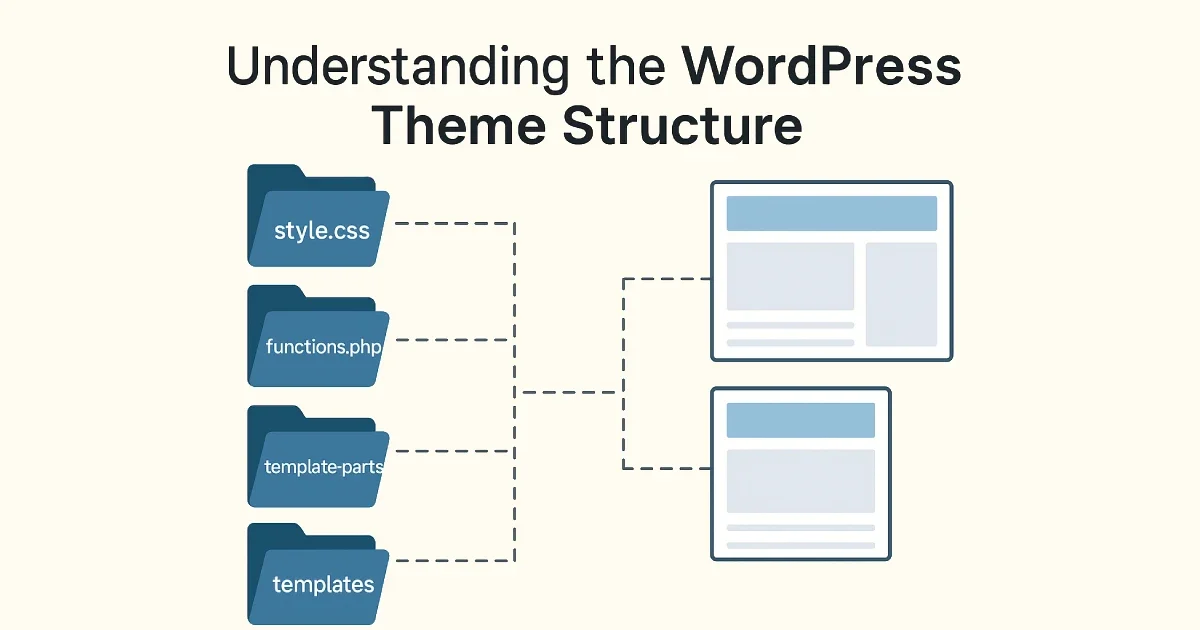
A WordPress theme defines how a website looks, behaves, and presents content to users. While plugins extend functionality, themes control layout, styling, and the overall user experience. Whether you’re maintaining an existing site or preparing for development work, understanding the theme structure helps you troubleshoot issues, improve performance, and create a more reliable WordPress environment.
At https://wisegigs.eu/, we manage and optimize WordPress installations daily. A large part of that work involves understanding how themes are organized and how their components interact. This guide breaks down the entire WordPress theme structure in a simple, practical way — no code required.
1. What a WordPress Theme Actually Does
Themes are responsible for the visual presentation of your website. Their main tasks include:
Formatting how pages and posts appear
Controlling header, footer, sidebar, and layout sections
Styling typography, spacing, and colors
Managing navigation menus
Displaying blog archives and categories
Integrating with the block editor or page builders
Even if you never edit theme files yourself, understanding how they work helps you make better decisions when choosing, optimizing, or replacing a theme.
2. The Core Components Inside Every WordPress Theme
A typical WordPress theme contains several important files and folders. Instead of listing code, let’s focus on the purpose of each part.
Theme Stylesheet (style.css)
Defines the overall design — things like fonts, colors, spacing, and visual styling.
Theme Functions File (functions.php)
Loads theme features, registers menus, supports widgets, and connects scripts or styles. Think of it as the “control center” of the theme.
Template Files
These determine how different pages appear. Common examples include the homepage layout, single post layout, search results, and category pages.
Template Parts
Reusable sections (like headers or footers) used across multiple pages.
Screenshot File
Displays the theme preview inside your WordPress dashboard.
Optional Folders
Many themes include additional folders for assets, images, block patterns, or templates that help keep everything organized.
Understanding these sections helps you navigate the theme more confidently — especially when updating or customizing.
3. How WordPress Chooses Which Template to Use
When someone opens a page on your site, WordPress follows a specific template hierarchy to decide which file to load. This hierarchy determines how content appears depending on the type of page the visitor is viewing.
Examples of what influences the layout:
Homepage vs. blog page
A single blog post
Category or tag archives
Search results
404 pages
Custom post types
For a detailed reference, WordPress provides a clear template hierarchy guide:
https://developer.wordpress.org/themes/basics/template-hierarchy/
Themes can override or extend these templates, but the concept stays the same across all WordPress sites.
4. How Block Themes Differ From Classic Themes
WordPress now supports Full Site Editing (FSE), introducing a new type of theme called a block theme.
Here’s what sets them apart:
Classic Themes
Use PHP templates
Depend heavily on the functions file
Require CSS for styling
Often work with page builders
Block Themes
Use block templates for headers, footers, and layouts
Managed through the Site Editor
Use style presets controlled from theme.json
Require less custom coding
If you’re using a modern WordPress installation, block themes offer flexibility that was previously possible only with plugins or heavy customization.
5. Child Themes and Why They Matter
A child theme is a safe way to customize a theme without modifying the original files. This ensures that, when the parent theme updates, your customizations are preserved.
You need a child theme if:
You modify layout settings
You change styling beyond the theme options
You add custom functionality
You want long-term stability
Many sites break after theme updates simply because changes were made directly to the parent theme. Using a child theme prevents that.
More guidance on theme best practices can be found at:
https://make.wordpress.org/themes/
6. Choosing the Right Theme for Your WordPress Project
Not all themes are equal. Some are built for performance, others for design flexibility, and some for specific industries.
Consider these factors when picking a theme:
Performance
Lightweight themes reduce load times and improve your Core Web Vitals.
Compatibility
Check that the theme works well with page builders (if you use one), WooCommerce, or multilingual plugins.
Support & Updates
Themes that receive regular updates and have active support tend to be more secure and stable.
Customization Options
Ensure the theme provides enough design flexibility for your needs.
At https://wisegigs.eu/, we help clients evaluate themes based on performance, scalability, and long-term maintainability — not just design.
7. Common Issues Caused by Themes (and How to Avoid Them)
Themes can cause problems if they are poorly built or overloaded with features.
Watch out for:
Excessive scripts making your site slow
Outdated code causing errors or warnings
Poor mobile responsiveness
Conflicts with plugins
Visual instability during theme updates
Regular monitoring and theme audits help avoid most of these issues before they affect users.
Conclusion
Understanding how WordPress themes are structured helps you choose better themes, diagnose problems faster, and maintain long-term stability. Themes shape the visual experience, but they also influence performance, accessibility, and SEO. With a clear understanding of how everything fits together, you can manage your WordPress environment with confidence.
If you need help selecting, auditing, or optimizing your WordPress theme, the team at https://wisegigs.eu/ can support you every step of the way.
Contact us today → https://wisegigs.eu/#Contact